Studio & Clips
What is a Clip?
A Clip is a short, music-backed video created from an Entangled World. In the Studio, you combine your world's visuals with a segment of an Audio, then add animated text, images, and other elements on a timeline.
Released Clips appear:
- On the world's public page
- In the Clips tab of the home feed
- In search results, under the Clips filter
You can find all of your own Clips under My Clips.
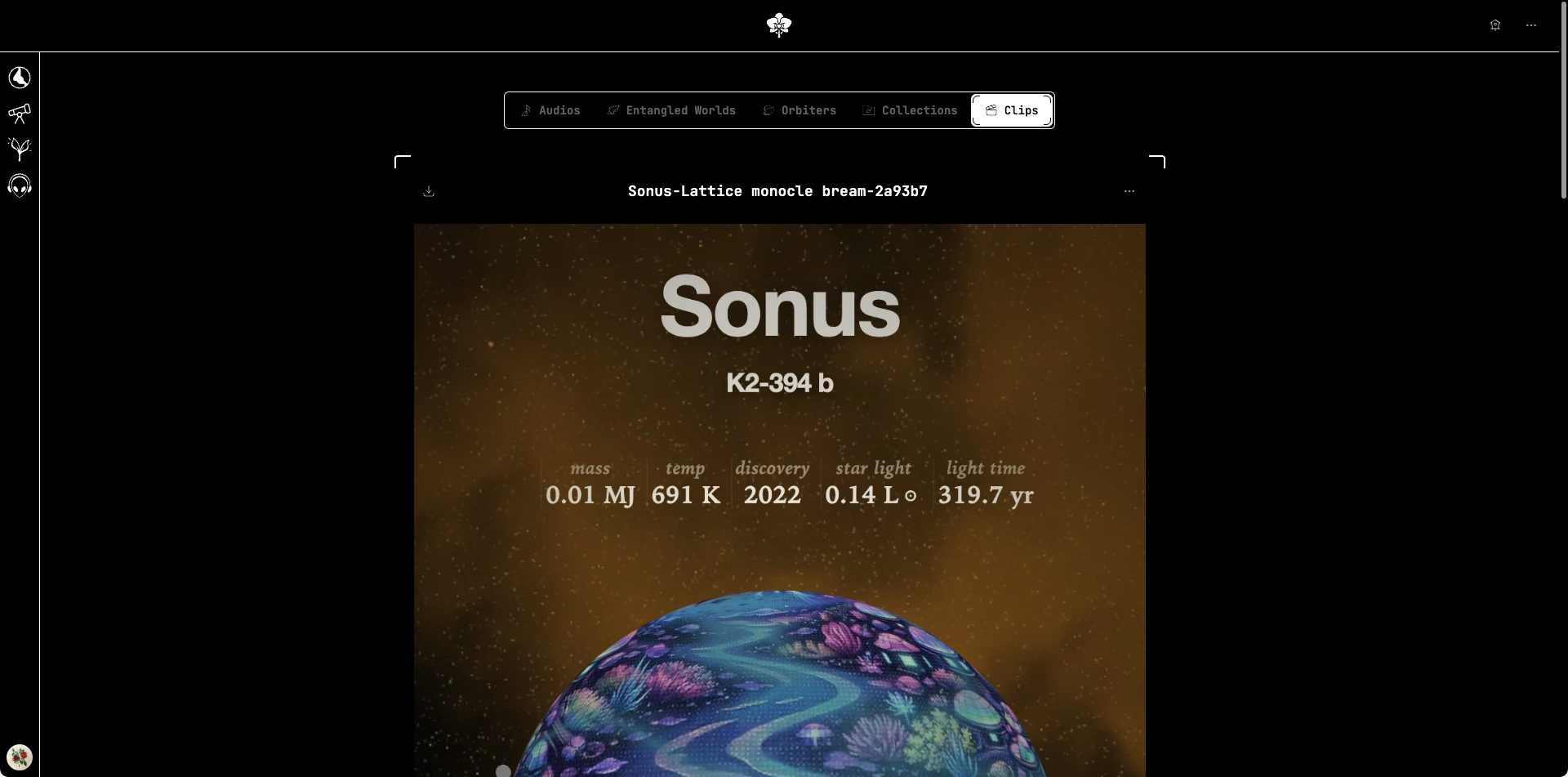
Open the Studio
Go to Release → New Clip, select the Entangled World you want to use, then choose Open video studio. You can also start a new Clip directly from your world's page.
Depending on your subscription, you can create a limited number of Clips per world.
The Studio guides you through four steps.
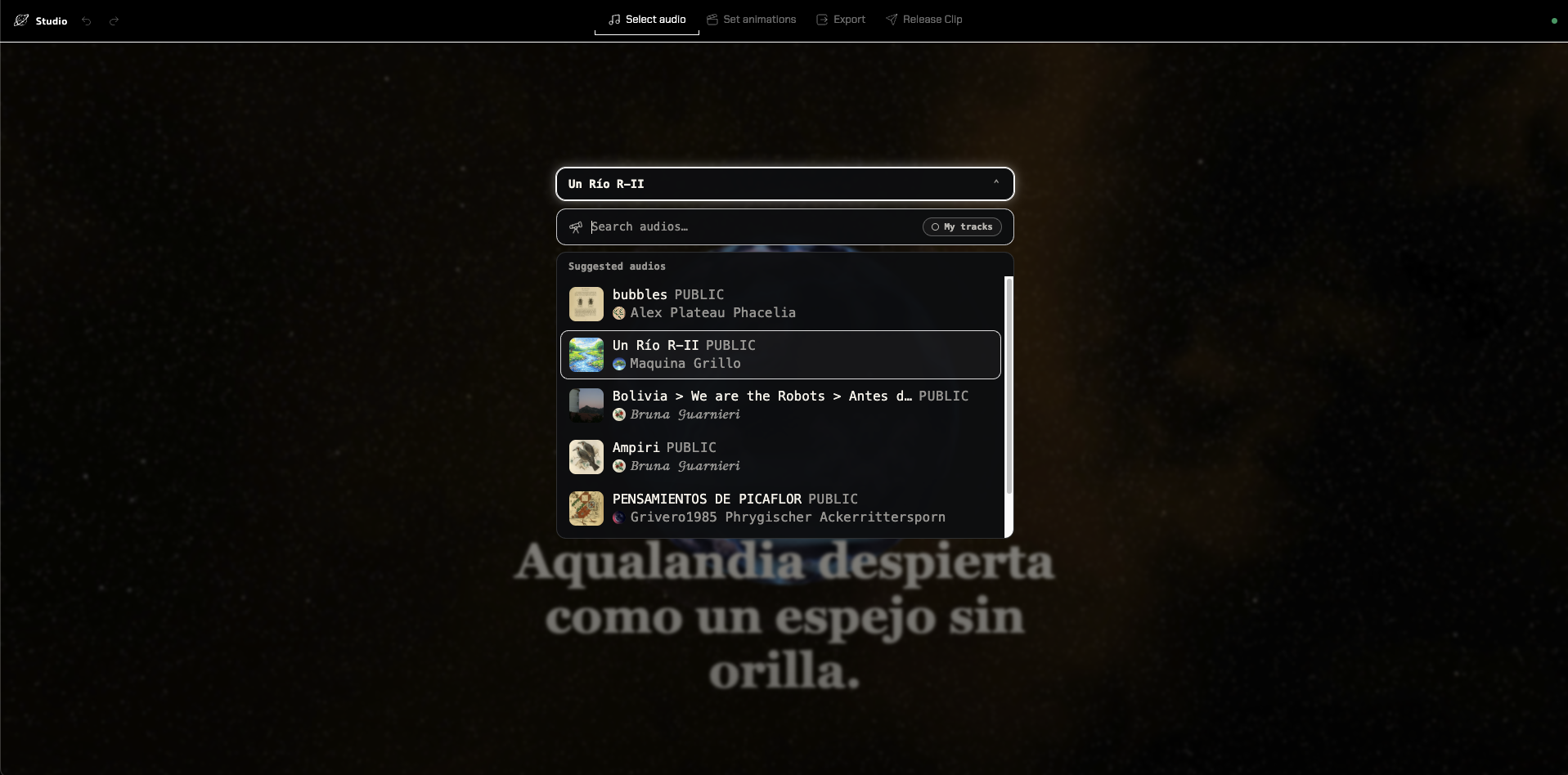
STEP 1 — Select audio
Choose the Audio that will back your Clip.
You can search the tracks available to you, preview them, and trim the exact segment you want to use. The Clip's length follows the segment you select.
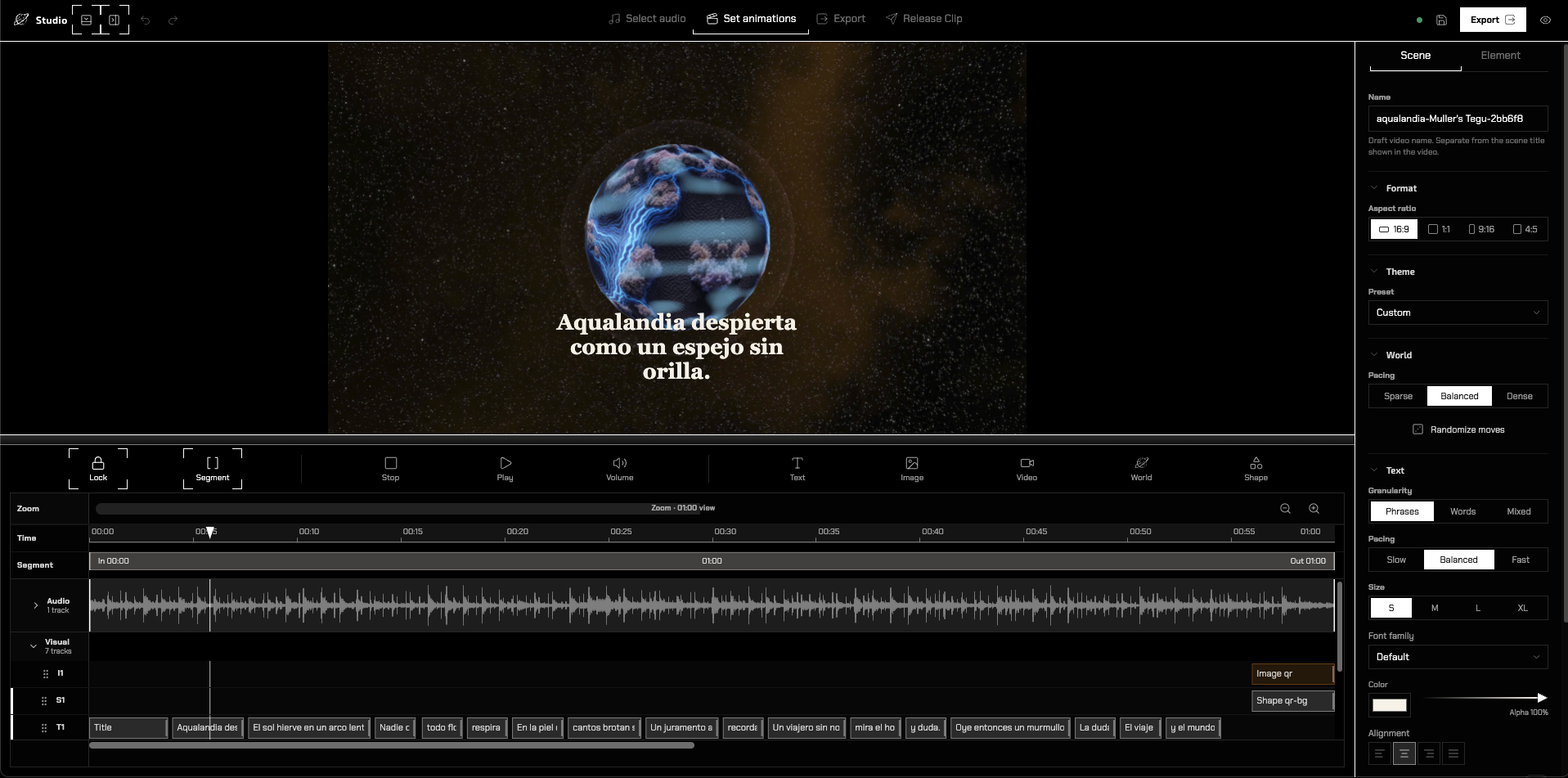
STEP 2 — Set animations
This is the heart of the Studio: a live canvas of your world, paired with a timeline.
Here you can:
- Add elements to the canvas: text, images, videos, shapes, and the world itself
- Arrange when each element appears and disappears on the timeline
- Pick a theme preset or customize colors and typography
- Set camera moves with presets like Calm orbit, Reveal, Drift, or Arrival — or fine-tune them manually
- Control text animation pacing and granularity (phrases, words, or mixed)
- Add audio fade in and fade out
Select any element to edit its details in the inspector. Scene settings define defaults; individual elements can override them.
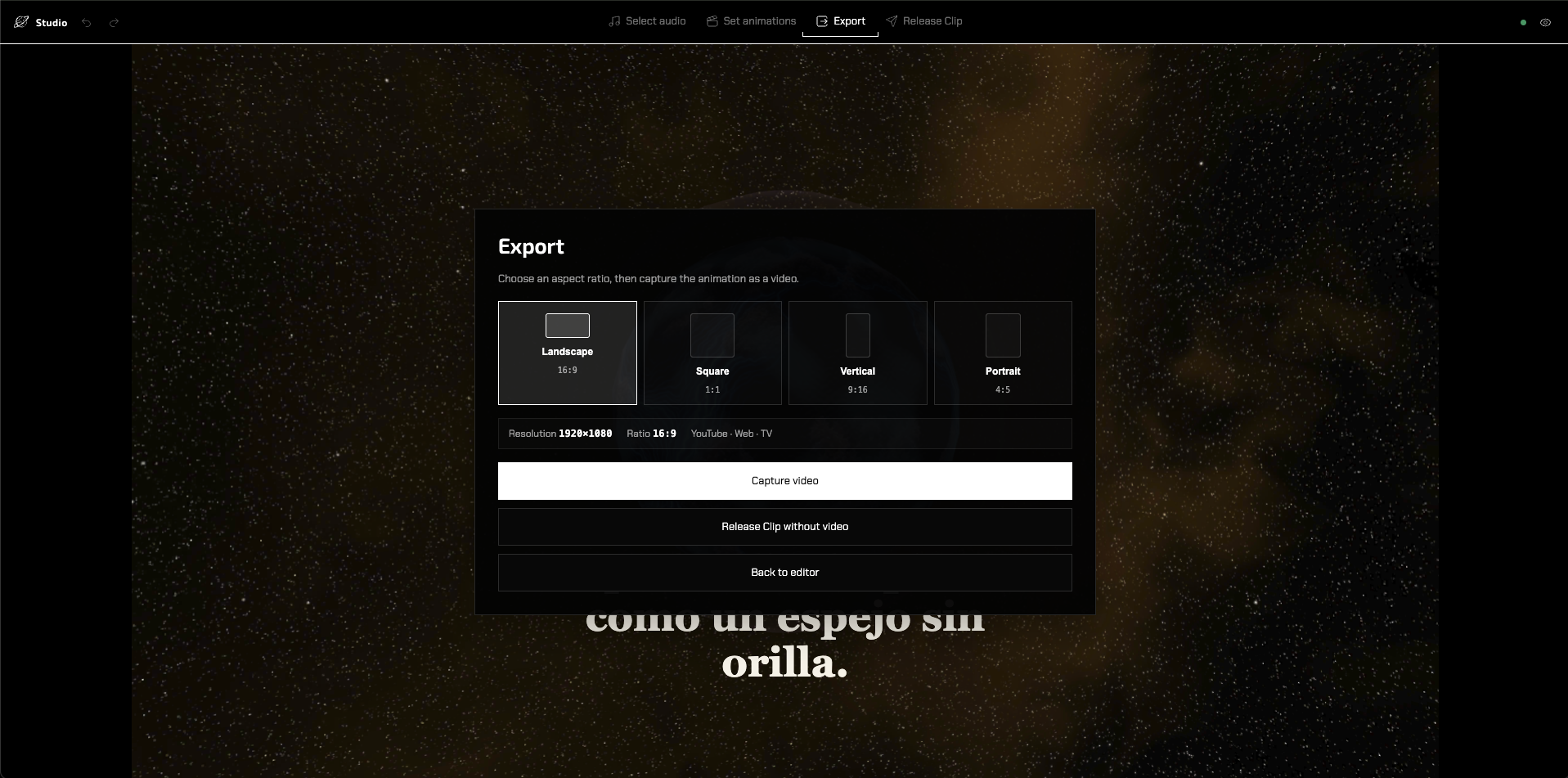
STEP 3 — Export
Choose an aspect ratio and resolution, then capture the animation as a video:
- Landscape — YouTube · Web · TV
- Square — Social feed
- Vertical — Reels · Shorts
- Portrait — Feed post
Select Capture video to start recording. A capture window opens — accept the share prompt there, then keep both windows open and unchanged until the recording finishes.
Video capture works on desktop browsers; Safari is not compatible.
You can also choose Release Clip without video to skip the capture and release the animation directly.
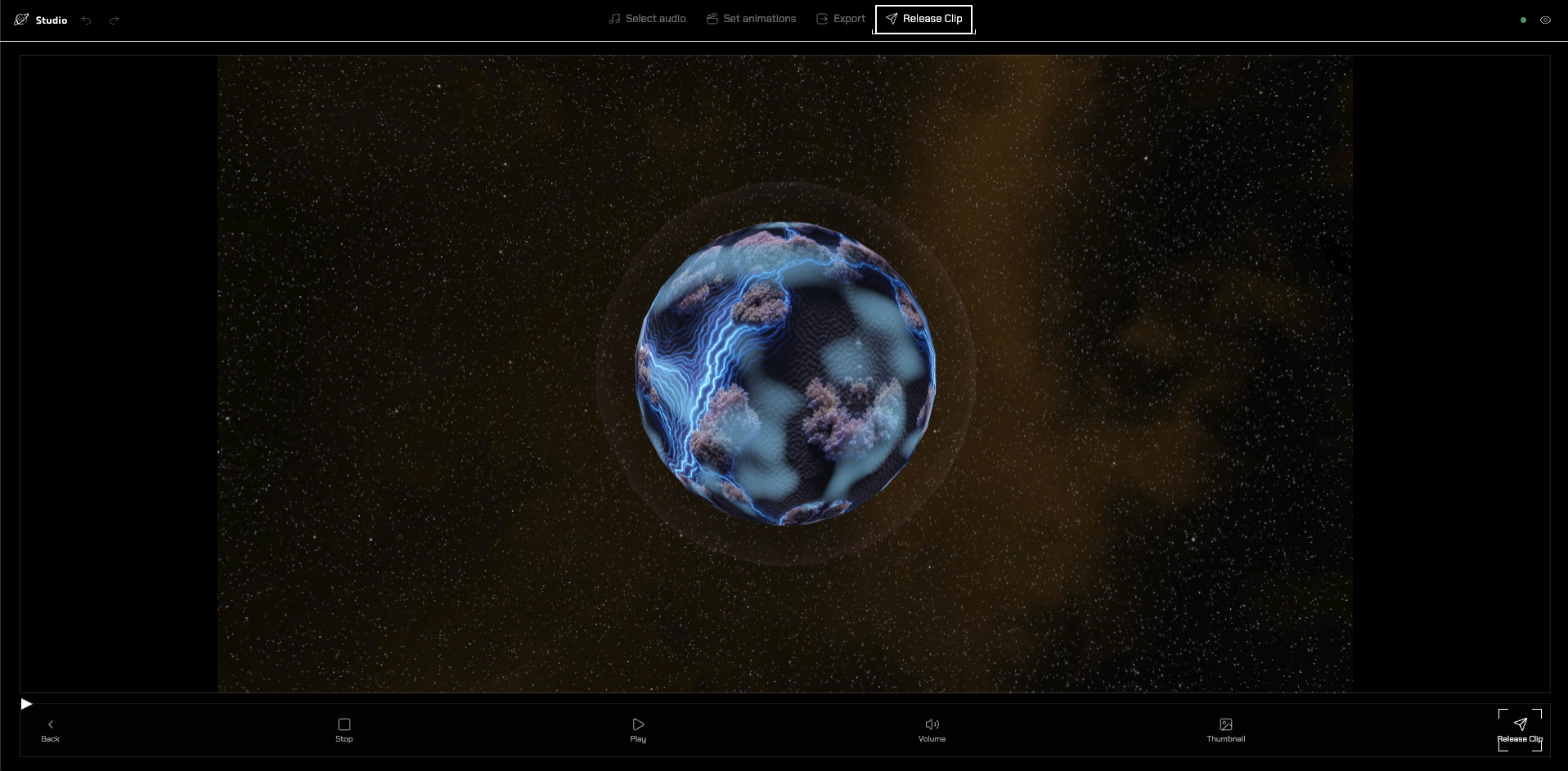
STEP 4 — Release Clip
Review your Clip before publishing. You can:
- Play back the animation or the captured recording
- Set a thumbnail — capture a frame or upload an image (a thumbnail is required to release)
- Save the Clip as a draft and come back later
- Download the captured video
- Release Clip to publish it
A Clip is never more visible than its parent world: if the world is private, the Clip stays private too.
Manage your Clips
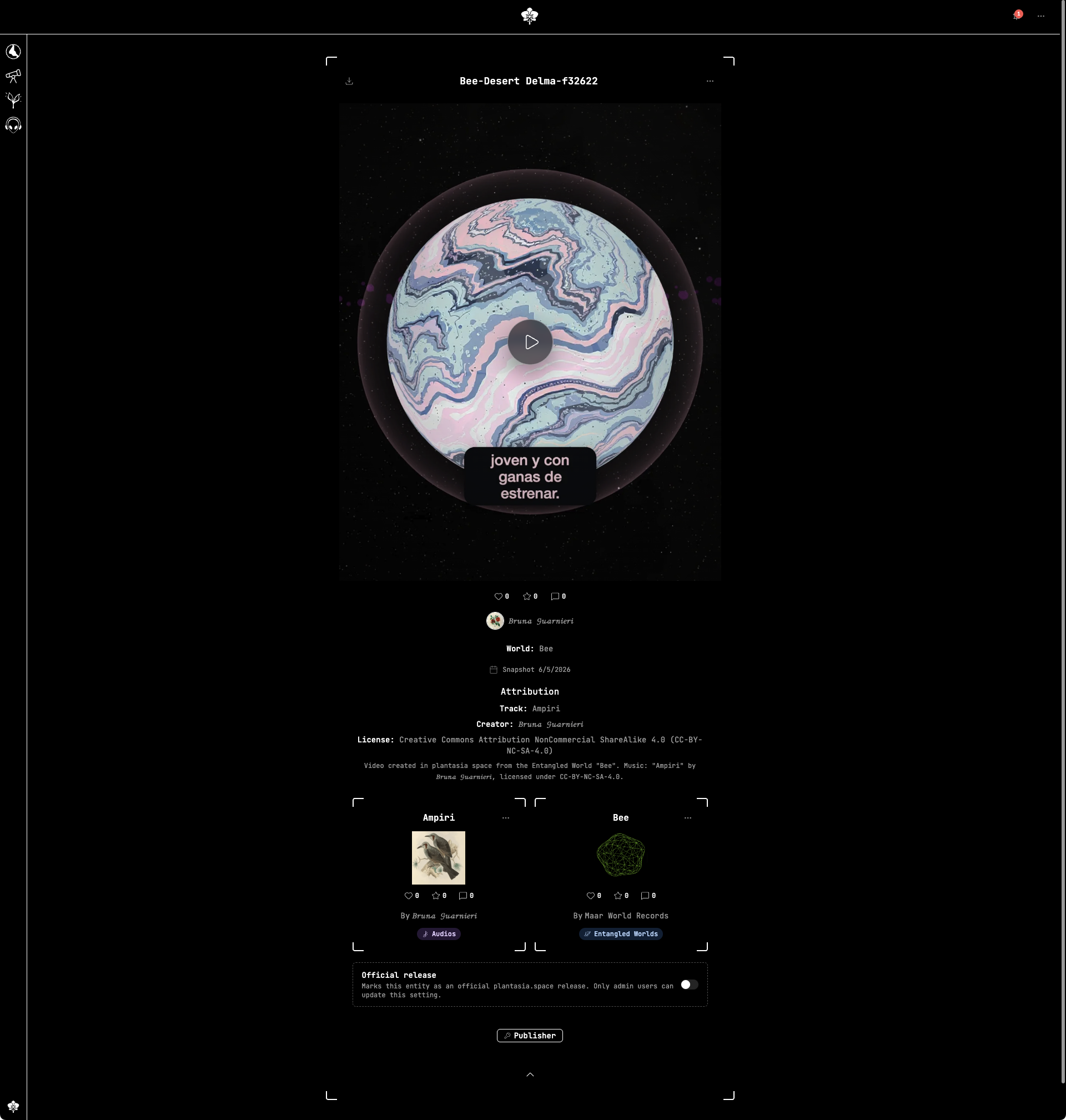
From My Clips or the Clip's page, you can:
- Download the video as original or compressed MP4 — only for Clips with a captured video, and for two weeks after the capture. After that, the Clip's animation remains, and you can take a new capture whenever you want
- Archive a Clip — it is hidden from feeds and profiles and stays private to you. Archived Clips can't be edited and don't count toward your plan limits, and you can restore them at any time.
- Delete a Clip permanently — its files are removed and direct links stop working. This cannot be undone.
Every Clip carries attribution for the Entangled World it was created from and the Audio it uses, including the track's license.