Release
Where to start
Go to Release → New Entangled World.
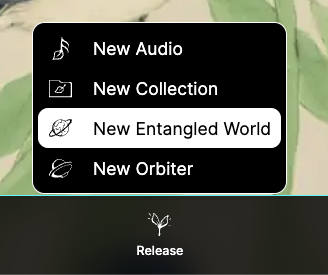
Depending on your user type, you can create a limited number of Entangled Worlds. Additional worlds can be added through add-ons.
Releasing a world opens a multi-step form.
STEP 1
1) Choose an exoplanet
Start by selecting a real exoplanet to entangle with your world.
You can:
- Pick from suggested or future exoplanets
- Search by name
- Search by number (for example, typing
95will show planets with that number in their name)
You can change the selected exoplanet later.
Exoplanet data
By expanding the information panel, you can see astronomical and physical measurements from the current exoplanet database.
At the moment, this data mainly affects Cosmic LFO behavior inside Orbiters. Choosing a planet is primarily an artistic and symbolic decision.
2) Name your world
Set a name for your Entangled World.
If you need inspiration, you can generate a name by selecting a biological kingdom:
- Plantae
- Fungi
- Animalia
The generated name can be edited later.
3) Worldbuilding elementals
Worldbuilding Elementals define the identity of your world.
They describe:
- Geography
- Flora
- Fauna
- Society
- History
You can:
- Apply a preset
- Randomize all values
- Define each element manually
These values are later used to generate visuals and narration.
4) Elemental Matrix
The Elemental Matrix places your world between water, fire, earth, and air.
This influences visual generation and creates six world sections:
- Main
- Geography
- Flora
- Fauna
- Society
- DNA
Save draft or continue
After completing the first step, you can save the world as a draft or continue to the next step.
STEP 2
5) Planet texture generation
In the second step, you can generate or regenerate the planet texture.
Select one of the available AI models and guide the generation using:
- Art medium
- Art technique
- Color palette
- Lighting style
Each world includes a limited number of texture credits based on your subscription. You can top up with texture credit packs if needed.
6) Scene and atmosphere
On desktop, you can open the world in fullscreen to adjust scene parameters:
- Starfield presets
- Background colors
- Number of moons (up to 247)
- Moon textures and colors
- World size and detail
- Halo (color and size)
- Clouds (texture, color, opacity, movement)
- Lighting (ambient, surface, direction X/Y/Z)
7) Narration and story
You can write narration for the world, including:
- Introduction
- Geography
- Flora
- Fauna
- Society
- History
- Conclusion
You can also use assisted writing tools to generate or translate stories using different tones, formats, and languages.
8) Collaboration and access
Define who can:
- View the world
- Publish Audios inside the world
- Edit the world
You can also set general access rules (private, link-based, or open).
9) Draft and release
Save your world as a draft while iterating.
Release the world when you are ready for it to be explored and used by others.