Release
Where to start
In the side bar or bottom bar, Go to Release → New Audio.
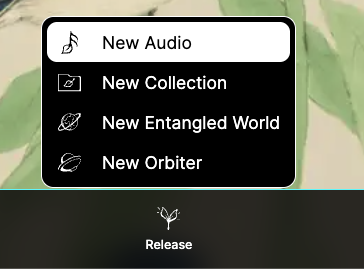
Releasing an Audio opens a guided form that takes you through upload, metadata, preview, and distribution settings.
1) Upload the Audio file
Select an audio file in WAV or MP3 format.
This file is uploaded to the server and becomes the core of the Audio release.
2) Track cover
Upload a cover image for the Audio.
If you don’t have one, you can generate an image from public-domain sources and customize it using the built-in editor.
The cover image is used across cards, previews, and listings.
3) Title and artist
Set the Audio title and define the artist or owner.
You can assign more than one artist, but they must already exist on the platform.
Additional contributors who are not on the platform can be credited later.
4) Entangled World and Orbiter (preview)

Each Audio is assigned to a default Entangled World and Orbiter.
You can change these selections to preview how the Audio behaves in different contexts.
These selections will be default ones, but do not permanently limit future use.
5) Metadata and description
You can add metadata, description, and contextual information.
Most of this information is visible on the Audio view card and helps others understand the release.
6) Story and credits (optional)
You can add a story, releated text and additional credits.
This section is optional, but it allows you to expand the narrative around the Audio and acknowledge contributors.
7) Privacy, distribution, and licensing
Choose how the Audio is shared:
- Private: only you can access it
- Link-based: accessible via direct link, not listed publicly
- Public: searchable and visible across the platform
Depending on your xPlorer tier, you may also schedule a future release.
By default, Audios are released under a Creative Commons (BY-NC) license.
You do not give up your rights. Publishing an Audio under Creative Commons does not mean transferring your copyright. You remain the rights holder. By releasing it, you grant Plantasia Space a limited license to host and display your Audio, and you grant the public the permissions defined by the selected Creative Commons license (for example, listening, sharing, or remixing under its terms).
AI and machine learning use. Audios published on Plantasia Space are not used for AI training, machine learning, or model development. The platform does not currently request or collect consent for AI training because no models are being trained. Any audio analysis performed is purely technical (for example, descriptors or feature extraction). If this were to change in the future, you would be clearly informed and asked for explicit consent before any such use.
You remain the owner of your content, but when you release an Audio you grant the platform permission to publish it so others can listen, explore, and credit your work. Make sure you have the rights to publish the content or permission from the original creator.
8) Draft and release
Save the Audio as a draft while working on it.
Release it when you are ready for others to explore and transform it.
Audio quality and playback settings
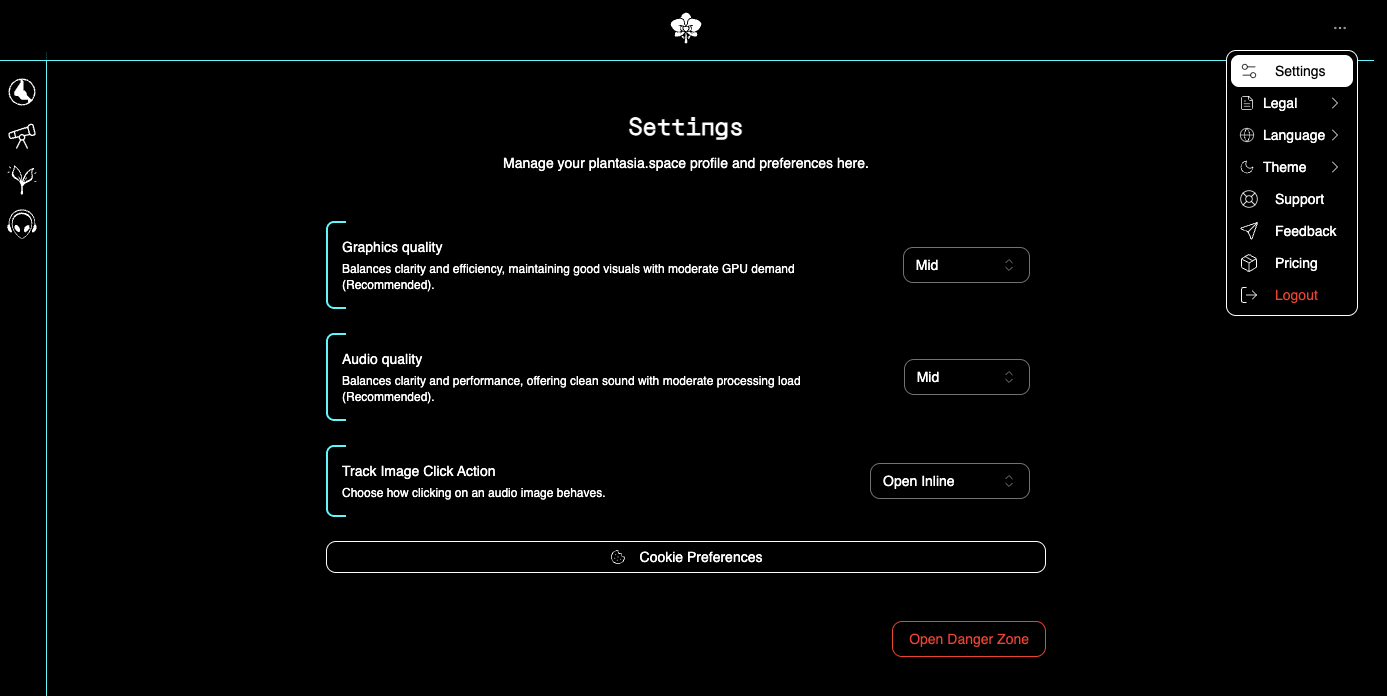
In the settings section, you can define how the Audio is delivered during playback.
Audio quality
Audios can be streamed in different quality levels.
Depending on the selected quality and the listener’s connection, playback may use:
- WAV (higher quality, larger file size)
- MP3 (lower bandwidth, smaller file size)
Adaptive playback
Playback quality can adapt automatically based on internet speed and device conditions.
If the connection is fast and stable, the system may stream the WAV version.
If the connection is slower or unstable, playback may fall back to MP3 to ensure continuity.
This allows Audios to remain accessible while preserving higher-quality listening whenever possible.